Creating & Customizing Templates
Custom templates allow you to standardize your documentation and streamline your workflow. This guide covers creating new templates and customizing them in the editor.
Accessing Your Templates
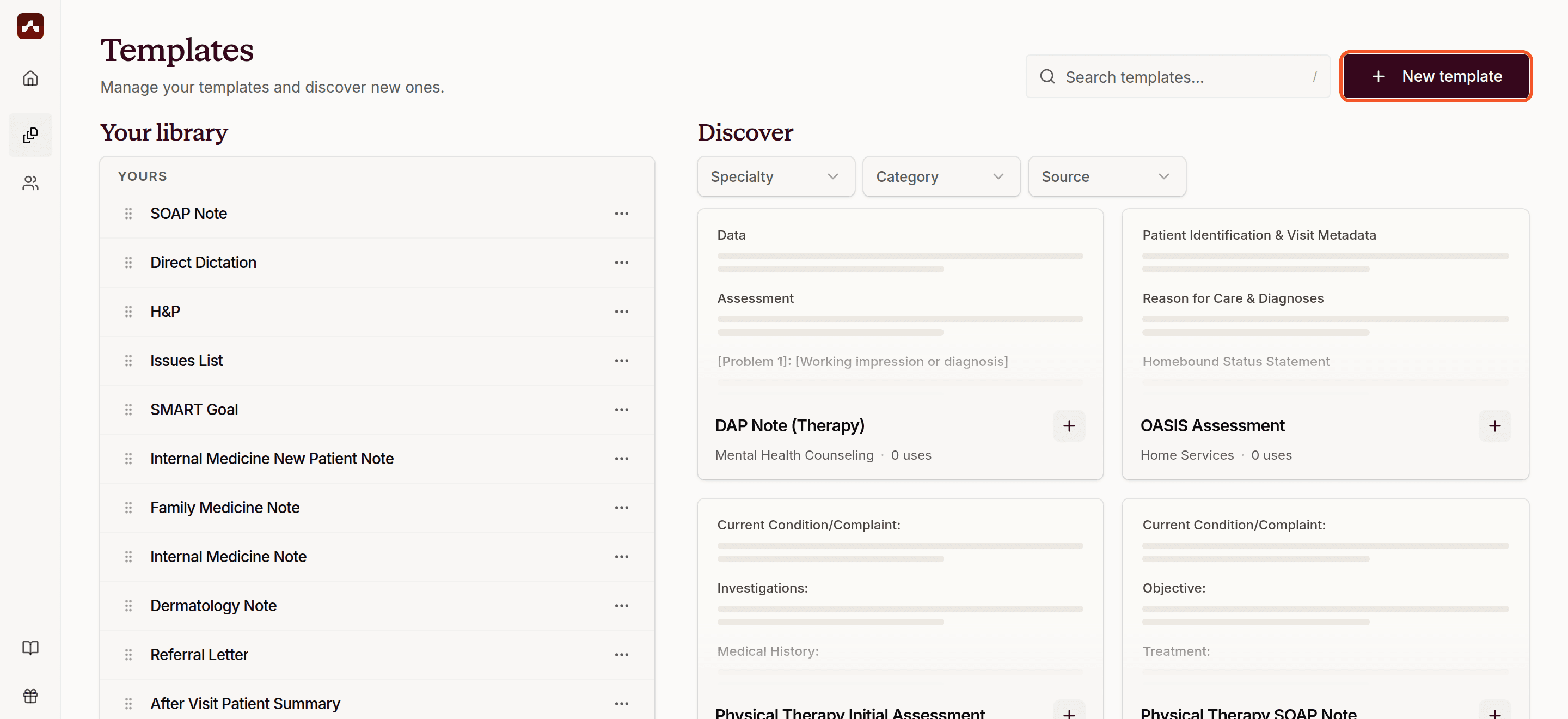
- Navigate to the sidebar on the left side of the application
- Click on the Templates tab
- The Templates page shows two panels: Your library with your saved templates, and Discover, where you can browse and add ready-made templates (see the Global Template Library)
Creating a New Template
Click the New template button in the top right corner, then choose how to start:
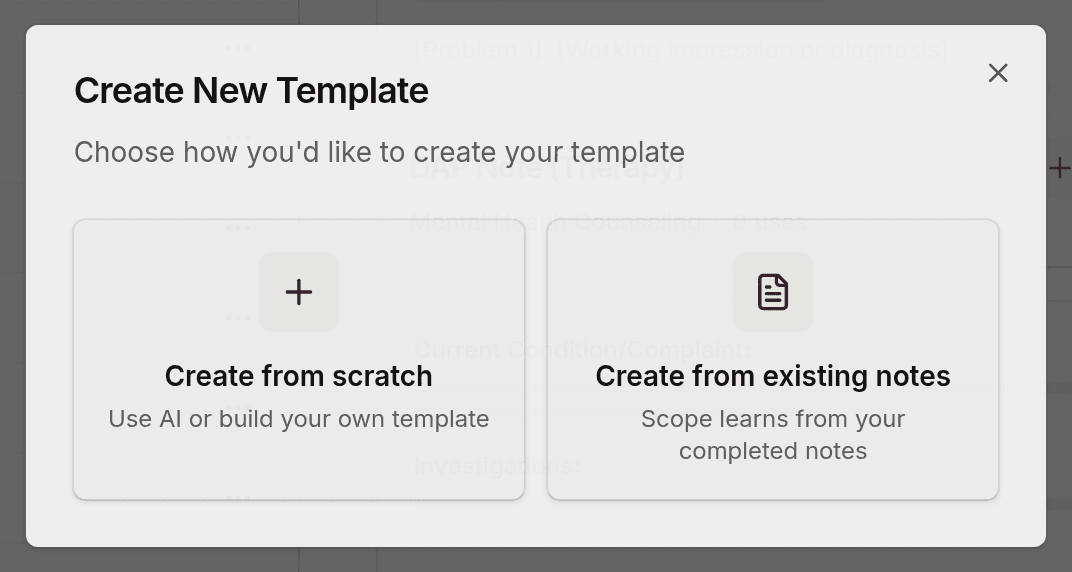
1. Create from scratch
Describe what you need and let AI build it, or start with a blank editor.
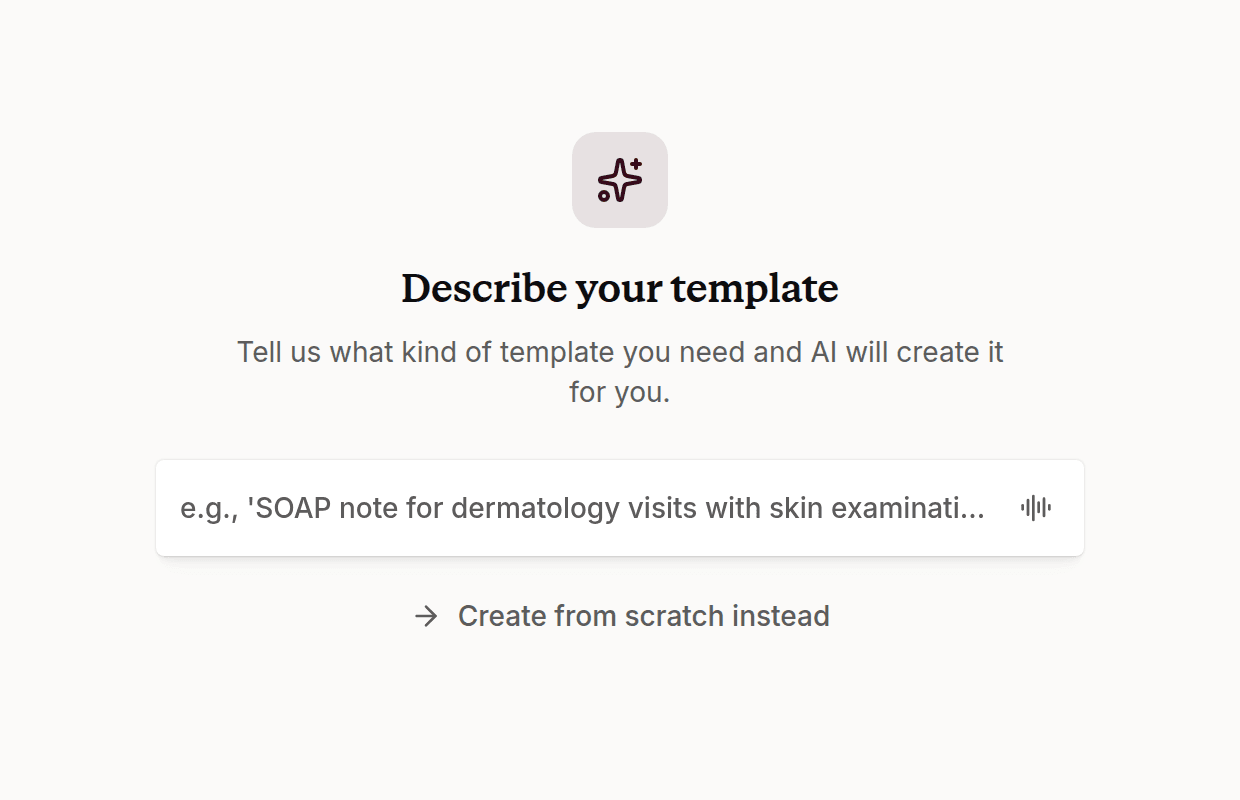
- Select Create from scratch
- Describe the template you need (e.g., "SOAP note for dermatology visits with skin examination findings and treatment plan") and submit — Scope will generate a structured template with appropriate sections
- Or click Create from scratch instead to open a blank template and build it yourself in the editor
2. Create from existing notes
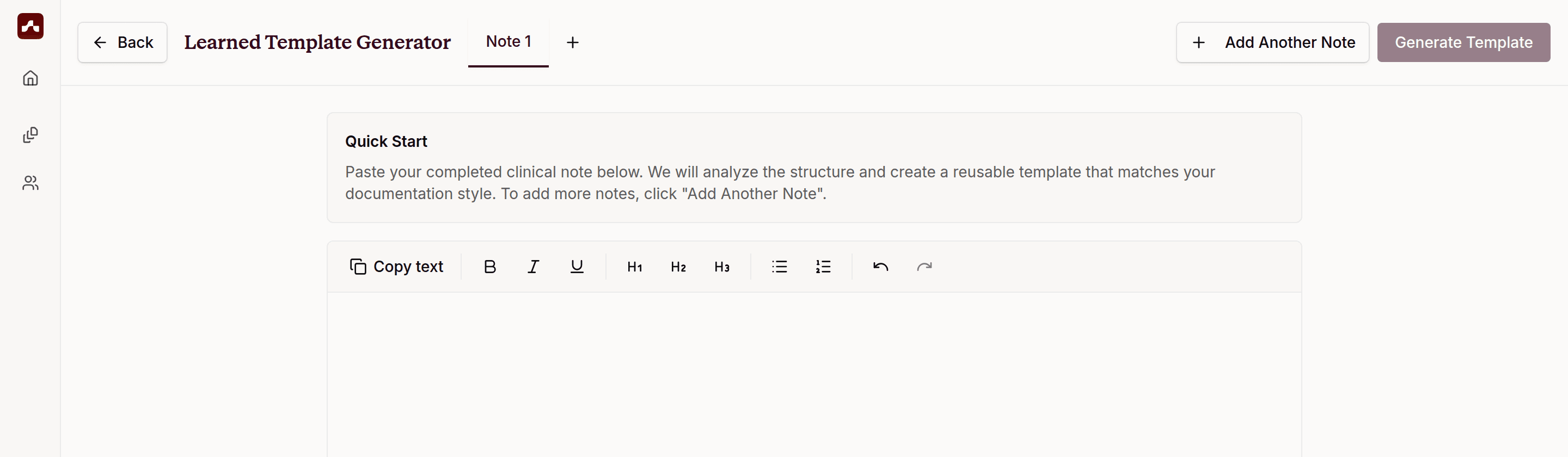
Paste up to 5 examples of your previous notes, and Scope will analyze them to create a reusable template that matches your style.
- Select Create from existing notes
- Paste a completed clinical note into the editor
- To add more examples, click Add Another Note (up to 5 notes)
- Click Generate Template — Scope analyzes your writing style and structure and creates a template that captures your documentation preferences
Editing and Saving Templates
Once your template is created, you can refine it in the editor:
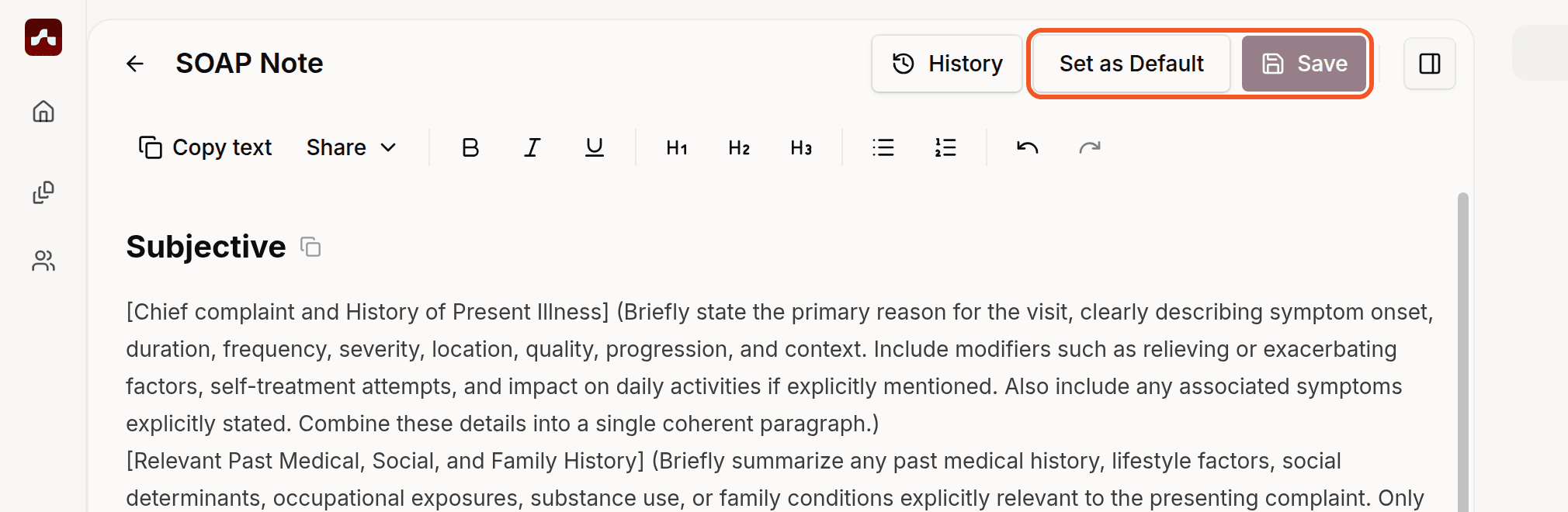
- Edit the Title: Click the title field at the top to rename your template
- Refine Sections: Add, remove, or modify sections using the formatting toolbar (headings, lists, bold, italic, and more)
- Add Instructions: Include bracketed placeholders like [Chief complaint] that guide note generation — open the Guide tab in the right sidebar for a syntax guide covering placeholders, multiple choice options, and meta-instructions
- Save: Click Save in the top right corner
- History: Click History to view and restore previous versions of your template
Refining with the Scope Agent
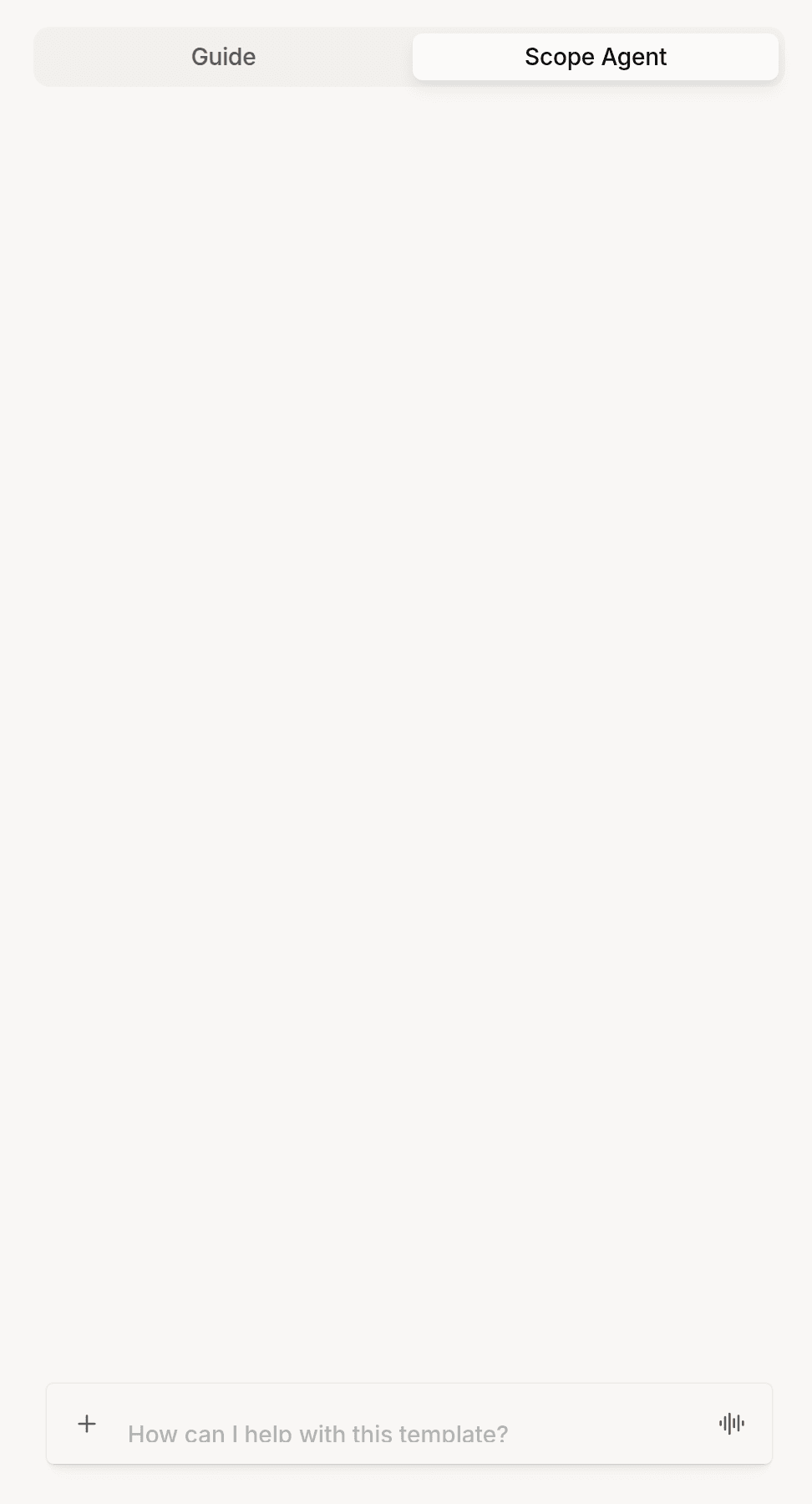
Open the Scope Agent tab in the right sidebar to refine your template conversationally. Ask it to add sections, restructure content, or improve formatting — then review and Accept changes or Decline changes. You can also select text in the editor and click Ask Scope to edit just that selection.
Setting a Default Template
Click Set as Default in the template editor to make it your primary template for new visits. This template will be pre-selected whenever you start a new visit. You can also set a default from the Templates page: click the ⋯ menu next to any template in Your library and choose Set as default.