Your Schedule and Push to EHR After Connecting
Once your EHR connection finishes setting up, Scope brings your EHR schedule onto your Scope calendar, then keeps it up to date. When you finish a visit, Push to EHR files the note back to the patient's chart as an unsigned draft.
This article walks through both. The screenshots show a practice connected to Tebra; other EHRs work the same way, with your EHR's name in place of Tebra.
If you haven't connected yet, start with Connecting Your EHR.
What happens when setup finishes
When your connection reaches You're connected, three things happen automatically:
- Your EHR schedule becomes your Scope schedule. Scope creates a schedule named after your EHR (for example, Tebra schedule) and turns it on.
- Your first sync starts right away. Scope pulls appointments from the past 7 days through the next 120 days. You don't need to change any settings.
- Push to EHR turns on for your visits. On desktop, finished visits show a Push to EHR button when your EHR supports note push.
In Settings → Organization → EHR integrations, the connection shows as Connected. It's marked Default if it's the connection Scope uses for your schedule and notes.
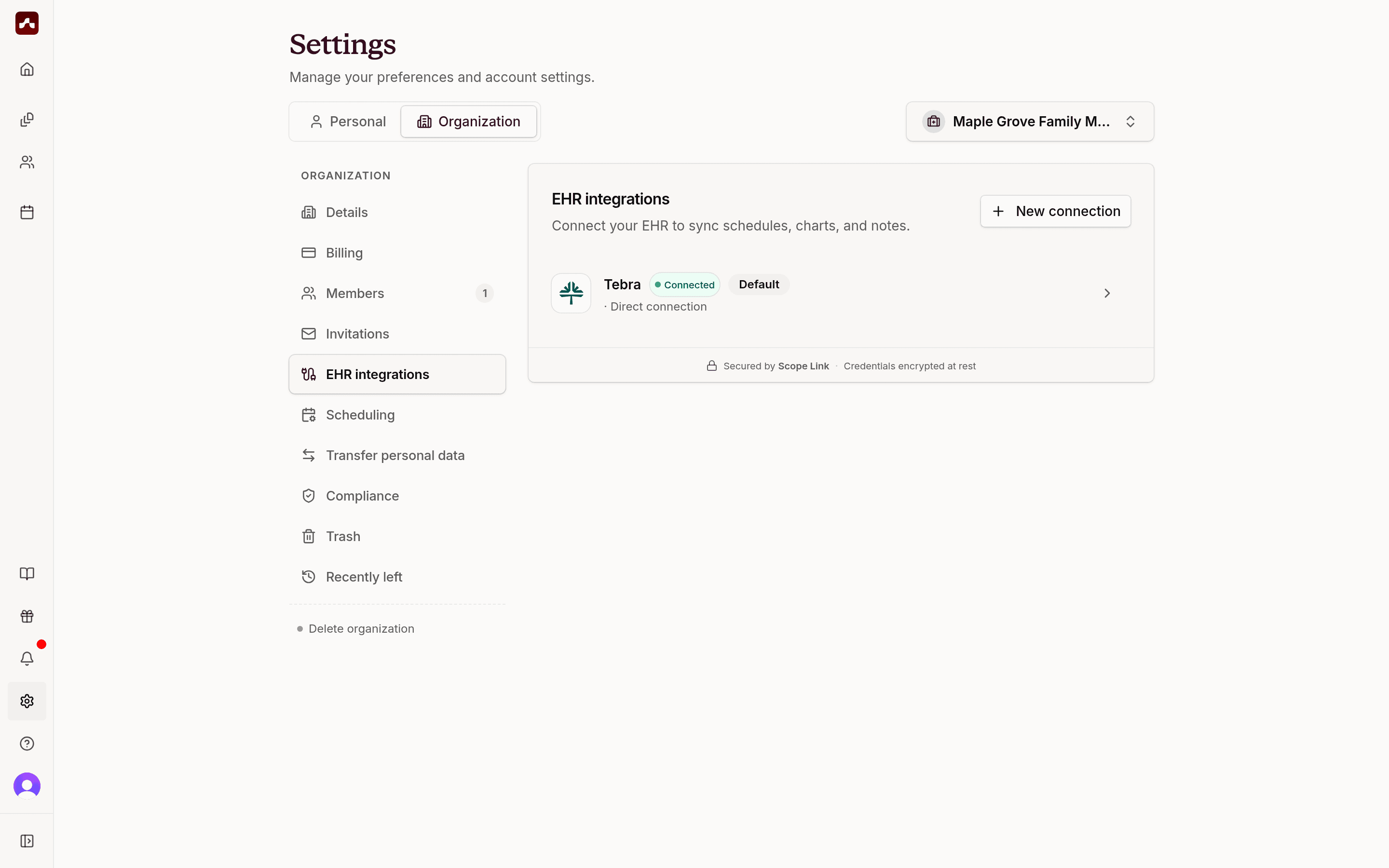 The EHR integrations page with Tebra connected and marked as the default connection
To see the new schedule, open Settings → Organization → Scheduling → Schedules. It shows as Synced from Tebra (or your EHR's name) and is switched on.
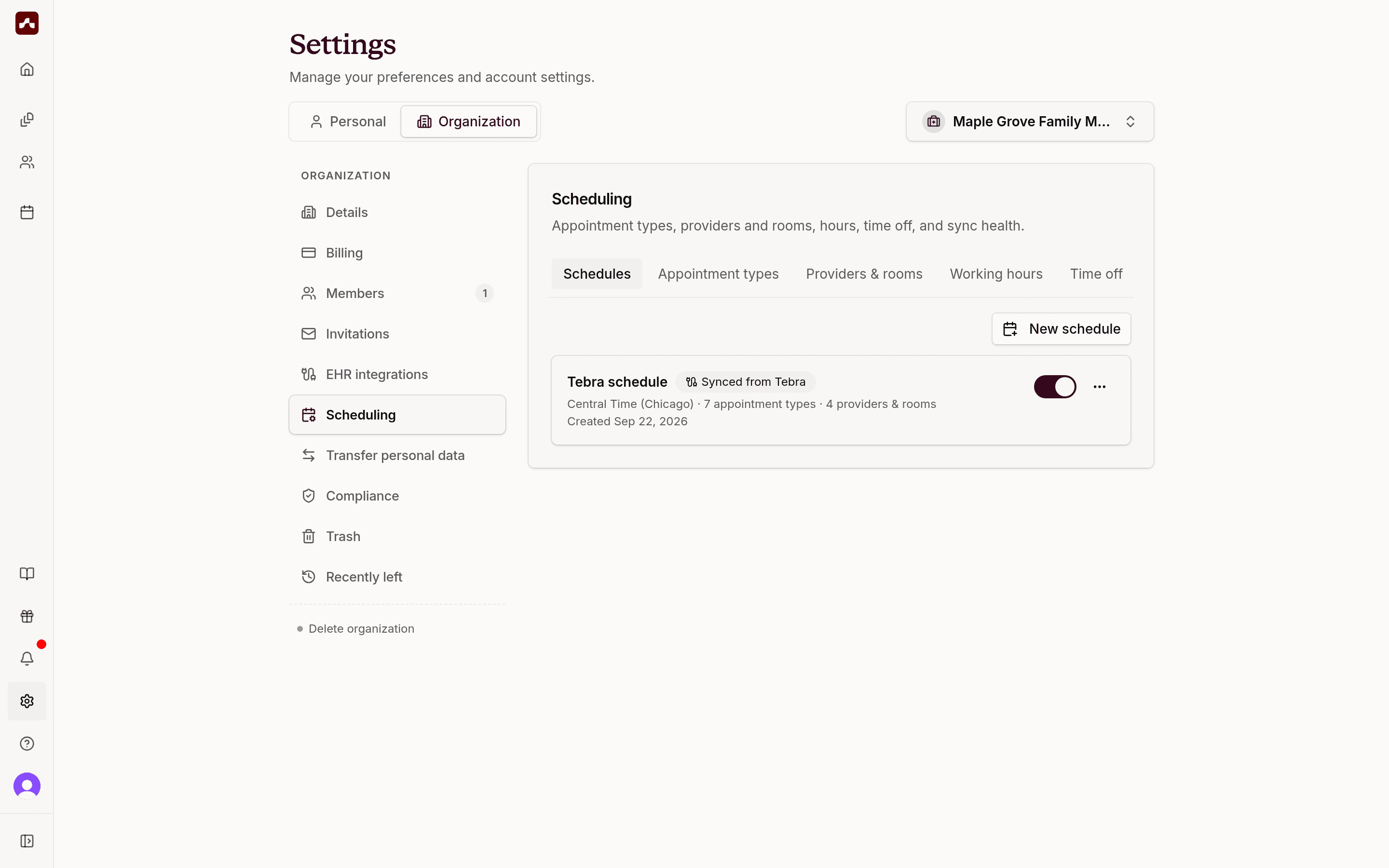 The Schedules tab in Settings with the Tebra schedule marked Synced from Tebra and switched on
If your workspace already had a schedule managed in Scope, that schedule is switched off when the EHR schedule turns on. Its appointments stay in Scope but become read-only, so there is only one place your calendar comes from. Your EHR is now the source of truth.
Your schedule in Scope
Open Patient Scheduling from the calendar icon in the left sidebar. Your EHR appointments appear on the calendar with their patient, time, appointment type, and provider.
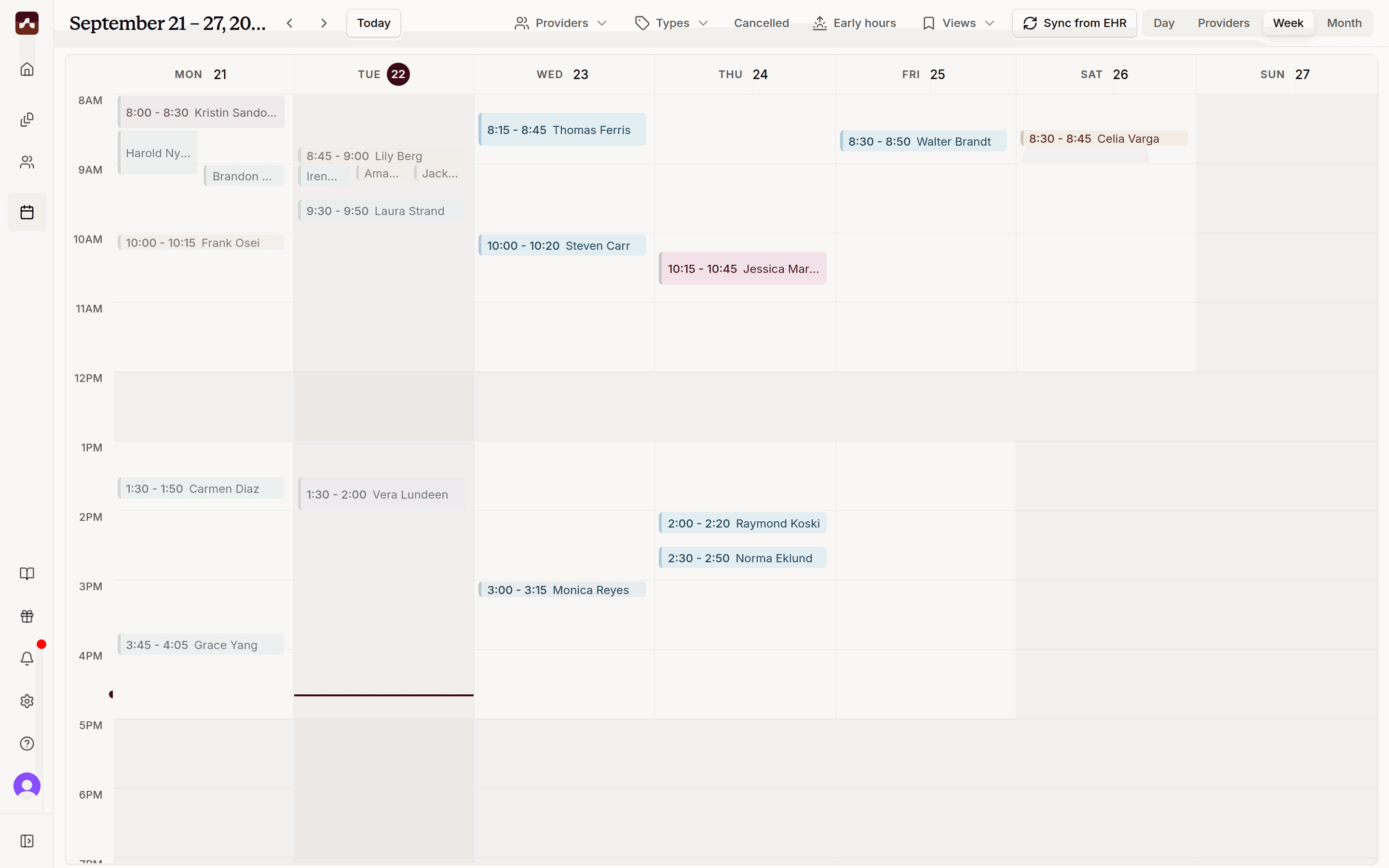 The Patient Scheduling calendar in week view, filled with appointments synced from Tebra
Use the toolbar to move around the calendar:
- Day, Providers, Week, and Month switch the calendar view. Providers shows one column per provider.
- Providers and Types filter the calendar to specific providers or appointment types.
- Cancelled shows or hides cancelled appointments, and Early hours shows or hides 12 AM – 7 AM.
- Views saves the current filters so you can return to them later.
Patient Scheduling appears in every workspace's sidebar, so you don't need to turn anything on. The calendar is available on desktop; on a phone, Scope asks you to open scheduling on a larger screen.
Keeping the schedule up to date
Scope checks your EHR for new, changed, and cancelled appointments every few hours, without any action from you. It keeps the same window: the past 7 days through the next 120 days.
To pull the latest changes right away, for example after your front desk books a same-day appointment:
- Click Sync from EHR in the calendar toolbar.
- The panel shows when Scope last synced and which dates it covers. Click Sync now.
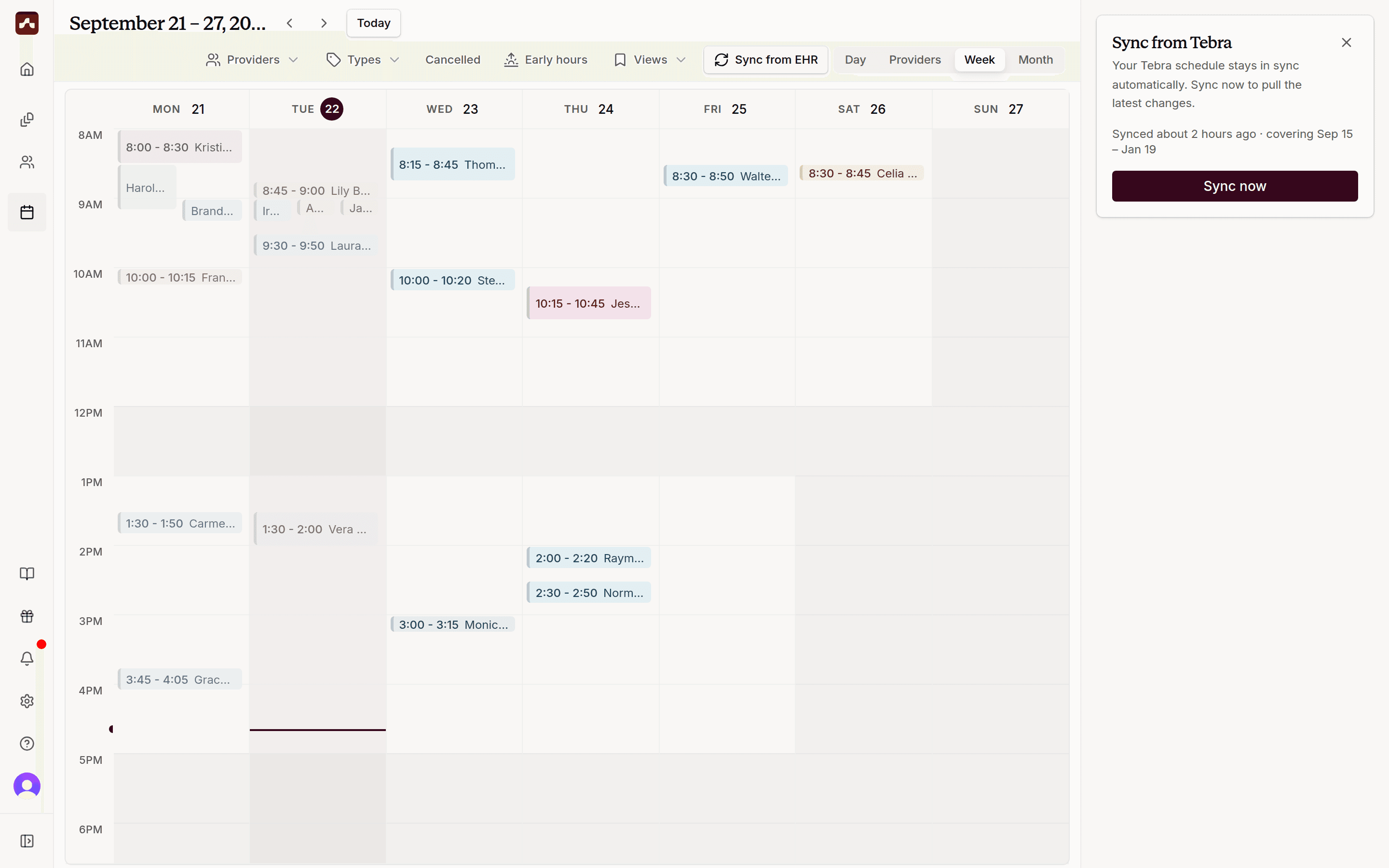 The Sync from Tebra panel showing when the schedule last synced and the Sync now button
- A sync can take a minute or two. When it finishes, the panel summarizes what changed, such as new and updated appointments. If nothing changed, it says Your calendar is already up to date.
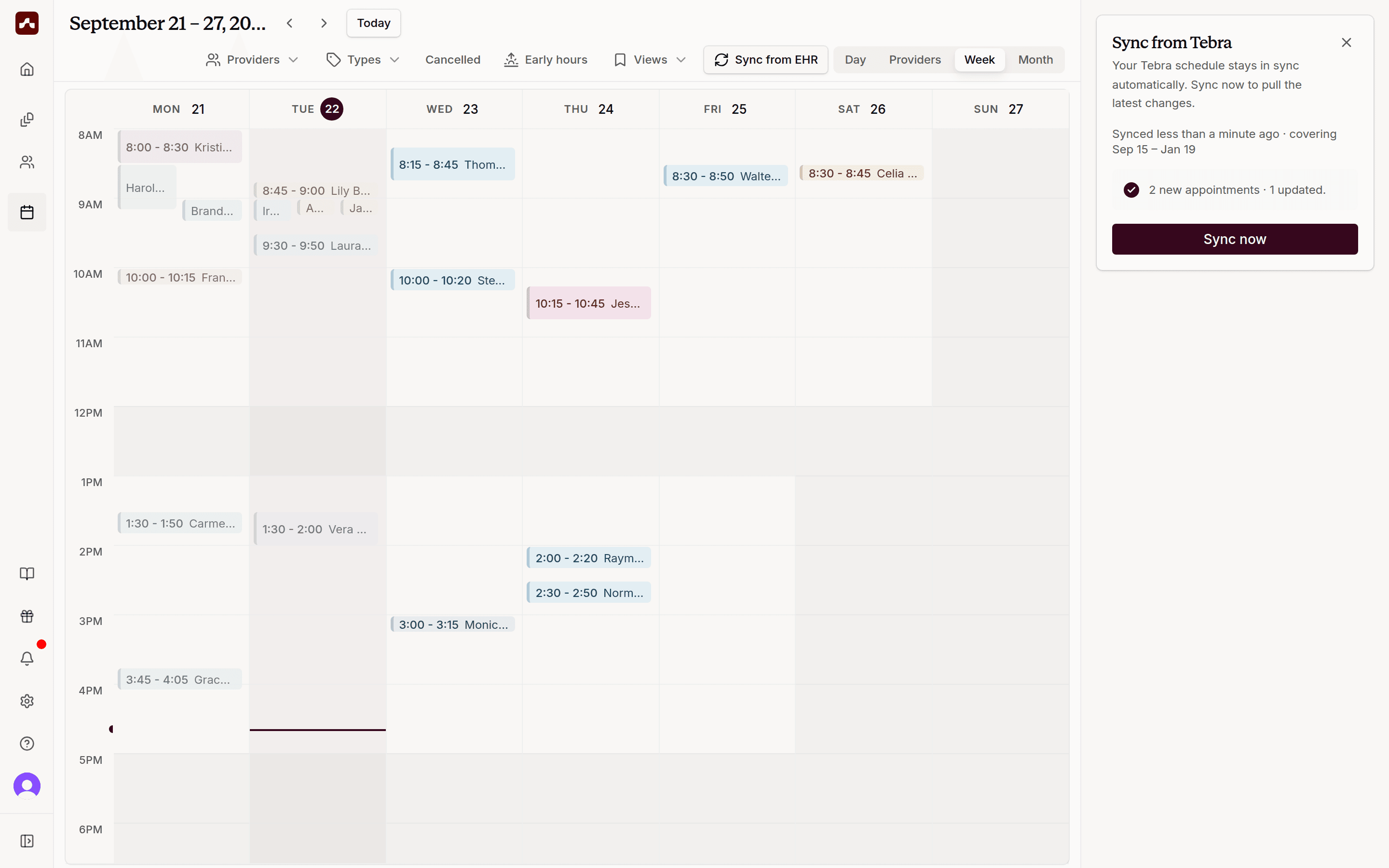 After Sync now, the panel reports 2 new appointments and 1 updated
Syncing only reads from your EHR. Scope never creates, moves, or cancels appointments in your EHR.
Appointments are managed in your EHR
Click an appointment to see its details: status, time, patient, appointment type, and provider. Appointments on an EHR-synced schedule can't be edited in Scope. To reschedule, cancel, or book an appointment, make the change in your EHR, and it will show up in Scope on the next sync.
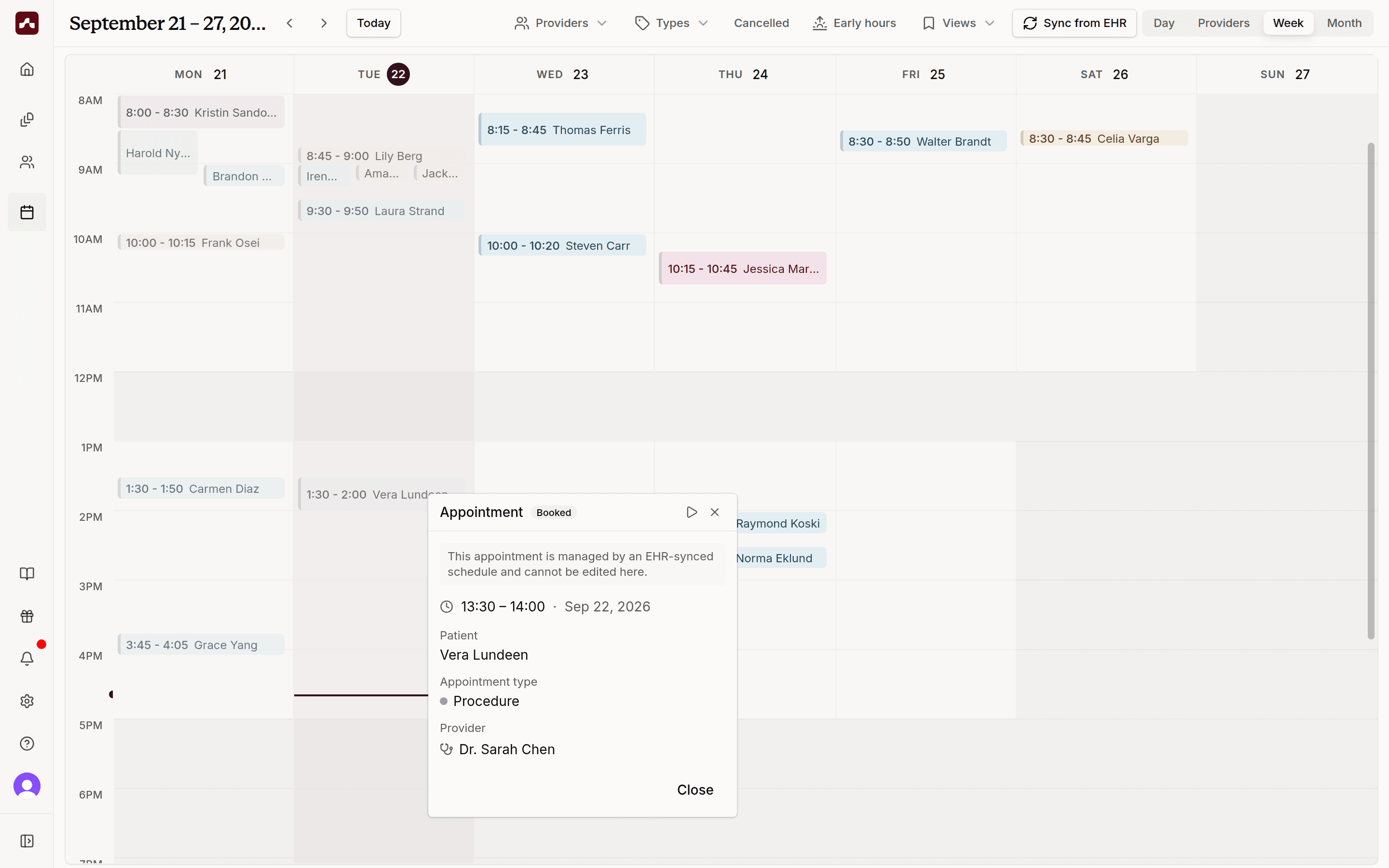 An appointment's details, with a note that it is managed by an EHR-synced schedule and cannot be edited here
Starting a visit from an appointment
Scope doesn't create a visit for every synced appointment. A visit starts when you're ready to document:
- Click the appointment on the calendar.
- Click the Start documentation (play) icon at the top of the appointment details.
- Scope opens a new visit for that patient, linked to the appointment. Record or dictate as usual.
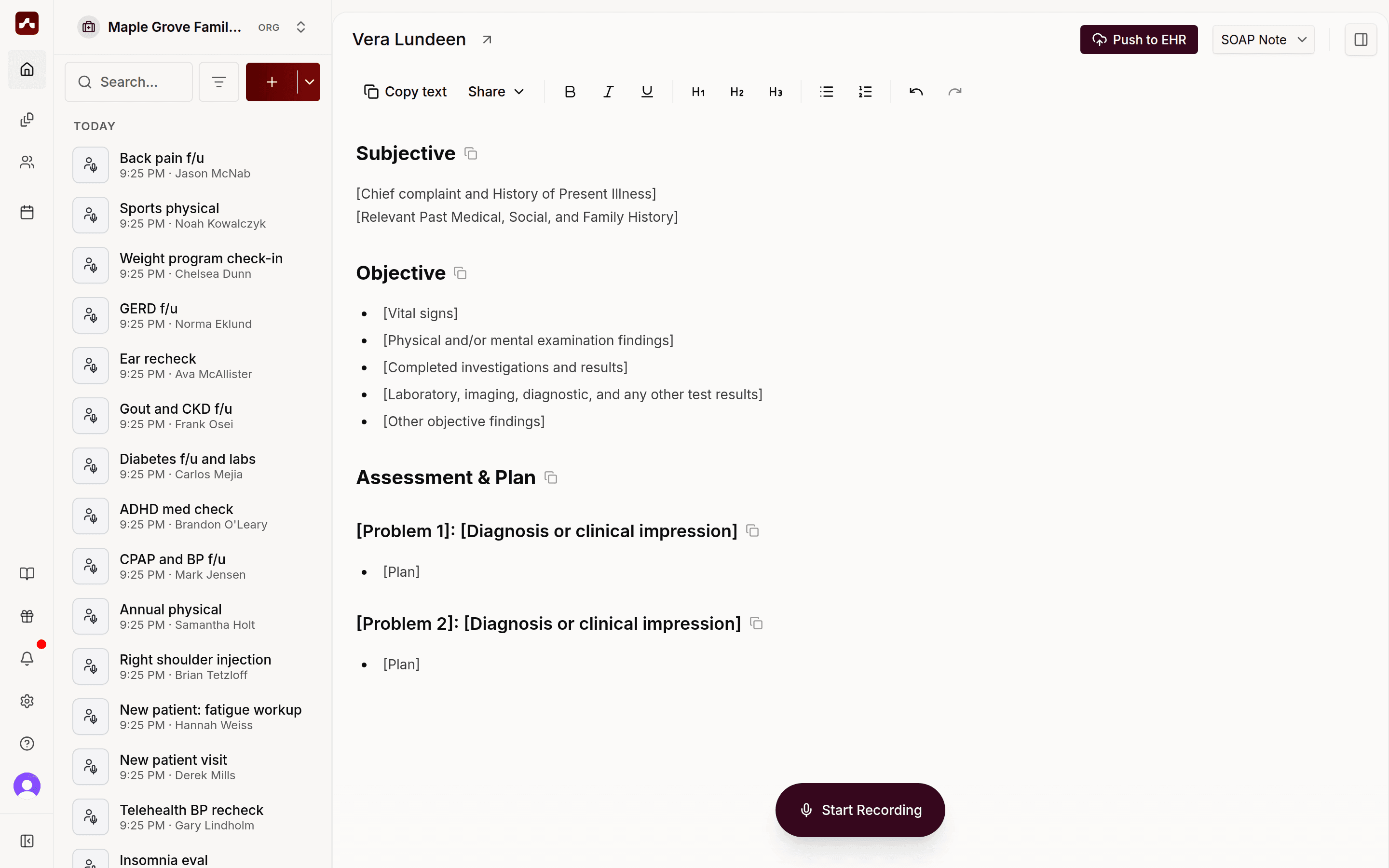 A new visit for Vera Lundeen, opened from her appointment and ready to record
After you start documentation, the same icon becomes Open visit and takes you back to that visit. Starting from the appointment also helps Push to EHR, because Scope already knows which patient and appointment the note belongs to.
Filing notes with Push to EHR
When your note is ready, click Push to EHR at the top of the visit. The button is available on desktop, and turns on once recording and note processing have finished.
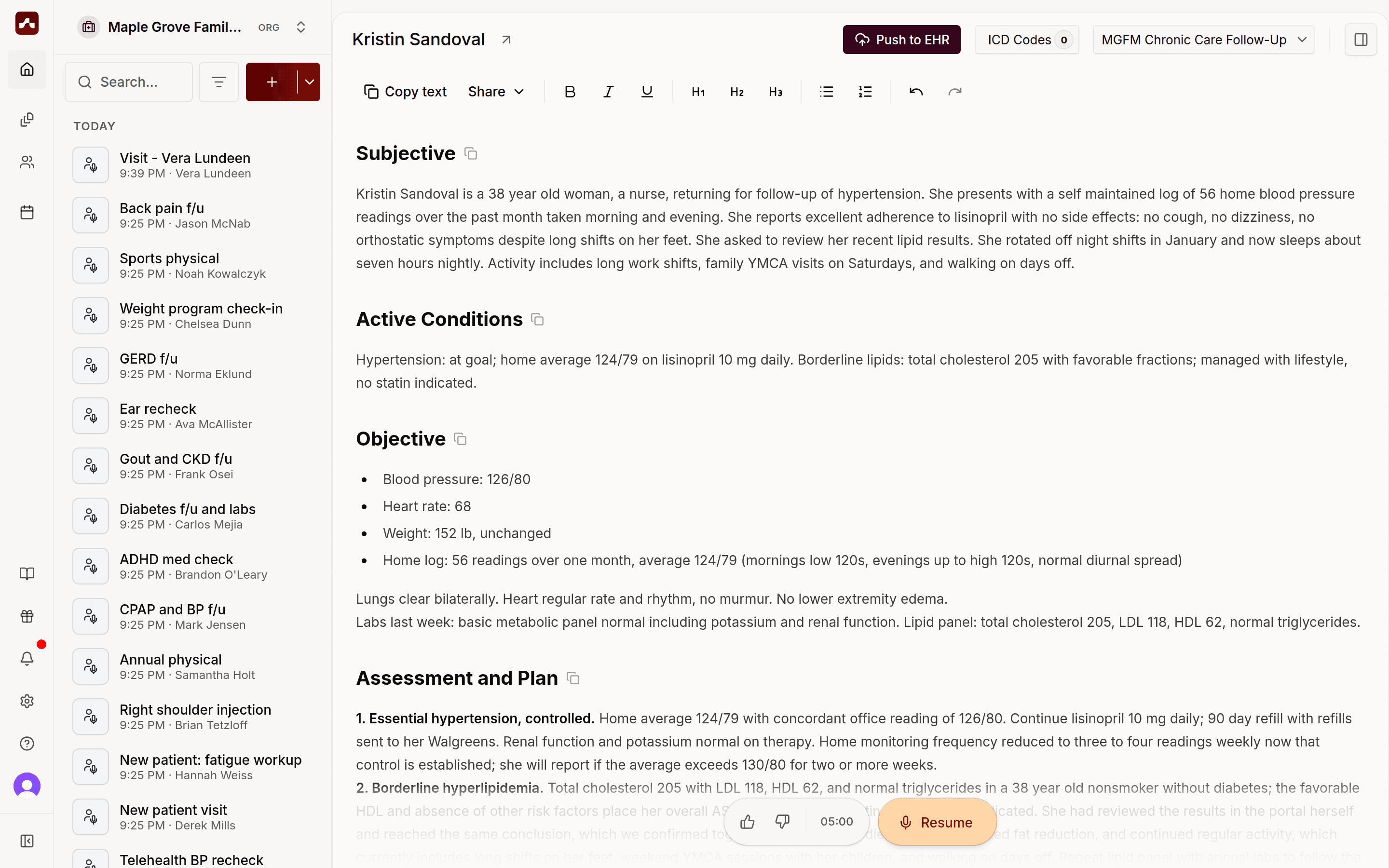 A finished visit note with the Push to EHR button at the top
1. Scope prepares the note
Scope connects to your EHR, finds the patient's chart, reads the available note types, and matches your note sections to them. This usually takes a few seconds.
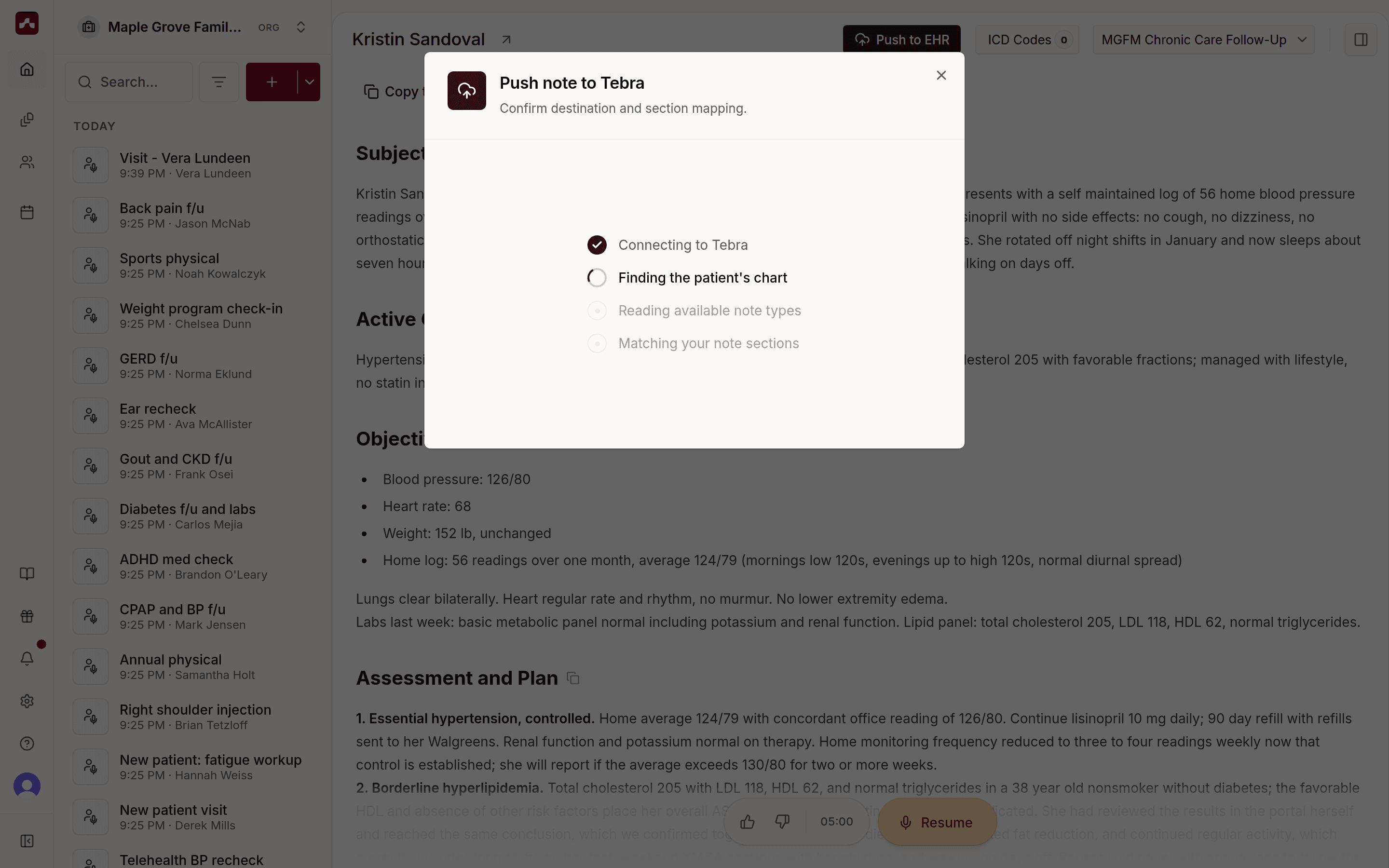 The Push note to Tebra dialog stepping through connecting, finding the chart, reading note types, and matching sections
2. Review where the note goes
Check each part of the dialog before you push:
- Destination note. This appears when the EHR already has a note for this appointment or date of service. Scope suggests that note, or you can choose Create new note. When filing into an existing note, Scope fills empty matching sections and leaves sections that already have content alone.
- Note type and Assigned provider. Scope selects its best match. Change either one from its dropdown.
- Patient. When Scope finds the chart with confidence, the patient shows as matched in your EHR. If there are several possible matches, pick the right chart and check I verified this is the correct patient chart.
- Note sections. Each section of your Scope note maps to a section of the EHR note type. Uncheck a section to leave it out, or pick a different destination from its dropdown.
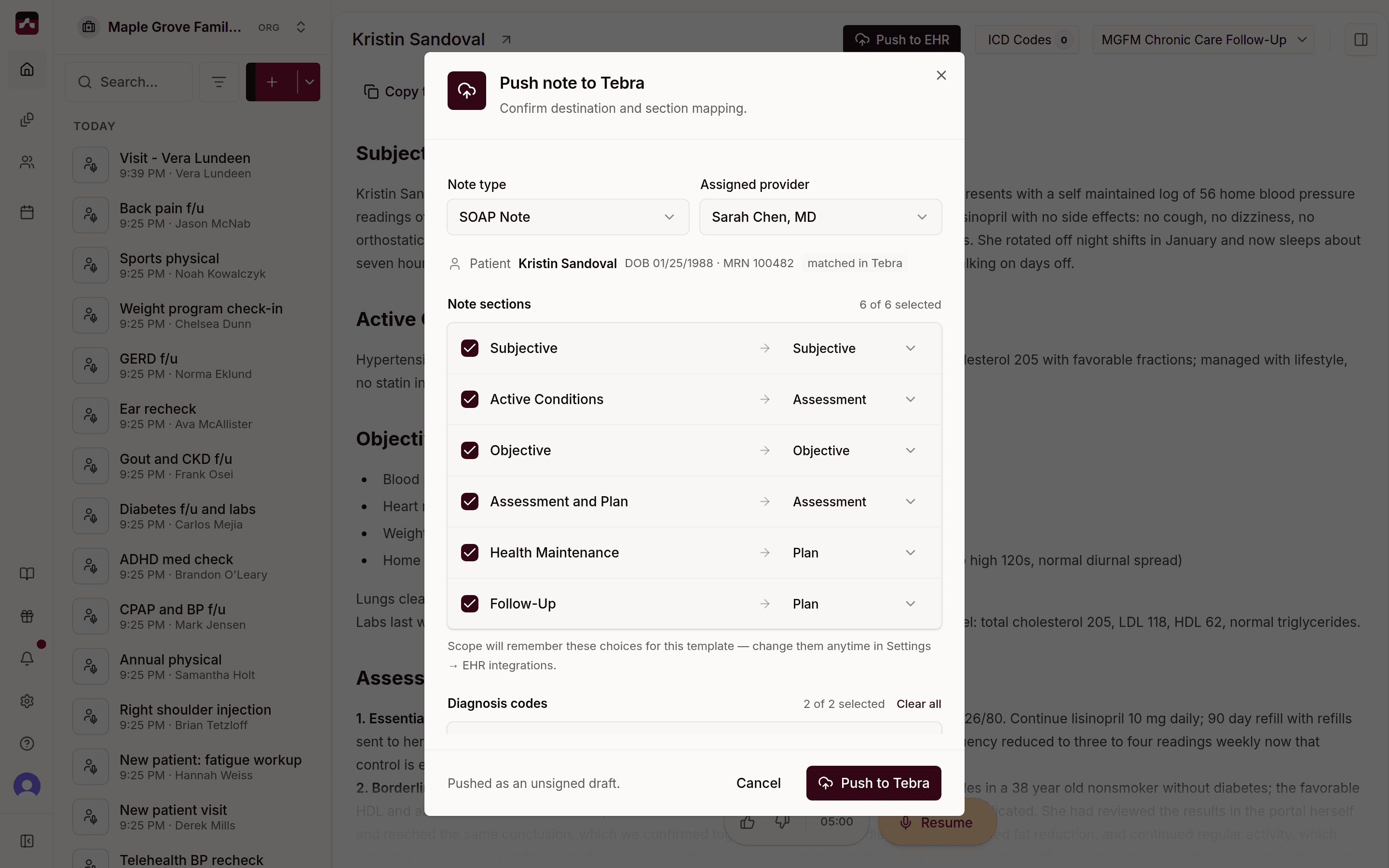 The review step, with note type, provider, the matched patient, and each note section mapped to a Tebra note section
Scroll down for anything else Scope can file with the note:
- Diagnosis codes. These appear when Suggest billing codes is on in the connection's Sync settings. All codes start selected, and selected codes are added to the patient's chart.
- Vitals. These appear when your note includes vitals Scope can file. Uncheck the box to leave them out.
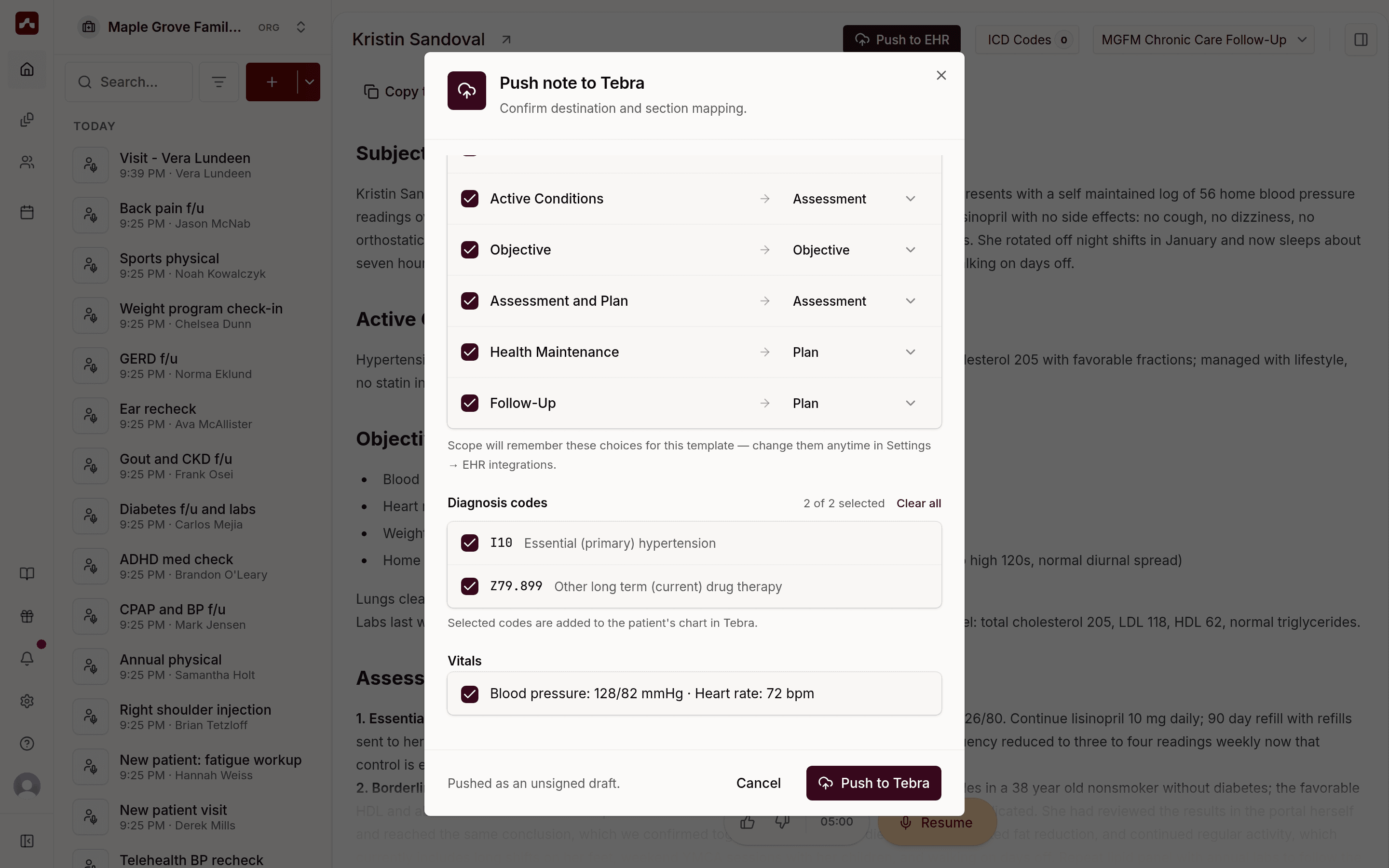 Further down the review step: diagnosis codes and vitals that can be filed with the note
3. Push and sign in your EHR
Click Push to your EHR (for example, Push to Tebra). The note lands in the chart as an unsigned draft, so you always review and sign it in your EHR. Scope then shows Note synced with the note type and time. Click Open in your EHR to go straight to the note.
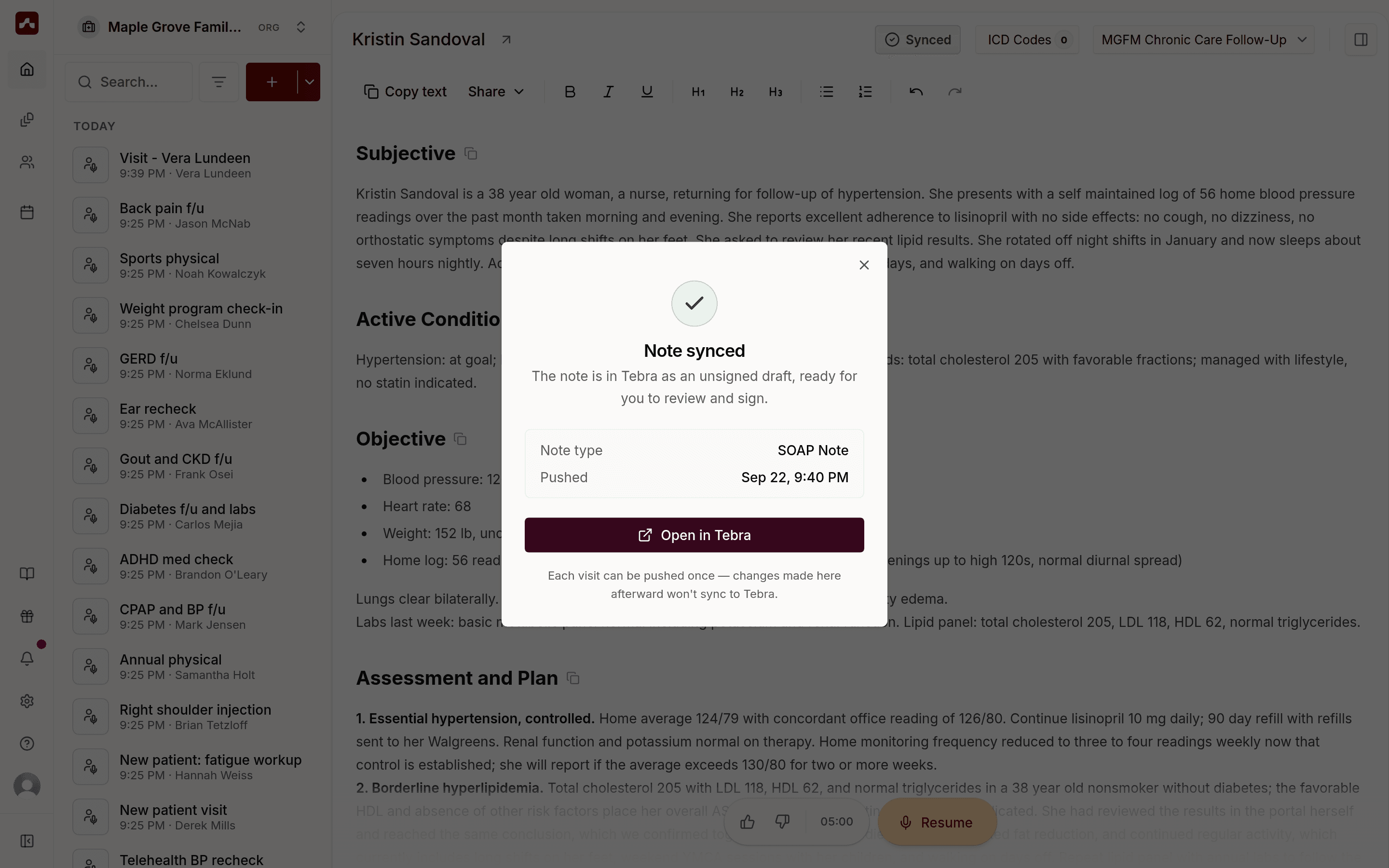 The Note synced confirmation with the note type, the time it was pushed, and an Open in Tebra button
At the top of the visit, the button now reads Synced. Each visit can be pushed once. Changes you make in Scope afterward won't sync, so make any later edits in your EHR.
Your mapping is remembered
The first time you push a note from a template, Scope remembers your note type and section choices. Later pushes from that template reuse them and show a one-line summary: N sections → note type · using your saved mapping. Click Review mapping to adjust it for a single push. If you add sections to the template later, Scope highlights the new ones as New so you can confirm where they go.
To review, edit, or reset saved mappings, open the connection under Settings → Organization → EHR integrations and go to Note mapping.
Troubleshooting
- An appointment is missing or out of date. Click Sync from EHR, then Sync now. Scope only syncs the past 7 days through the next 120 days, so appointments outside that range won't appear.
- I can't edit or reschedule an appointment. Appointments on an EHR-synced schedule are managed in your EHR. Make the change there, then sync.
- The Sync from EHR panel says it's reconnecting. Your EHR sign-in needed a refresh. This usually takes a minute or two, and Scope syncs again automatically once it's back.
- My visits don't show a Push to EHR button. Scope hides the button when your connected EHR doesn't support note push yet. Your schedule still syncs; use Copy text to paste the note into your EHR.
- I need to change a note after pushing it. Edit the draft in your EHR. Each visit can only be pushed once.
- The wrong patient chart was suggested. Pick the correct chart from the Patient dropdown before pushing. If the right chart isn't listed, check the patient's name and date of birth in Scope, then try again.