Connect Tebra to Scope
Connect Tebra to bring your schedule, patient charts, and notes into your Scope workflow. You add a dedicated Scope user in Tebra. Scope completes the account setup and checks access.
Before you start
You need administrator access in your Scope workspace and System Administrator access in Tebra. The connection belongs to your Scope workspace and is shared with its members.
This guide covers the Tebra web platform. For the original instructions, see Tebra’s Add New User or Provider Account guide.
1. Start the connection in Scope
- Open Settings → Organization → EHR integrations in Scope.
- Click New connection.
- Select Tebra.
- Click Continue to open the Tebra setup page.
- Keep the setup page open while you complete the Tebra steps in another tab.
The setup page shows the Scope user name, email, and temporary password. Use these details for the new account.
2. Open User Settings in Tebra
- Sign in to Tebra as a System Administrator.
- Open the user menu in the upper-right corner.
- Select Practice Settings.
- Select User Settings from the navigation.
- Click + Add New User.
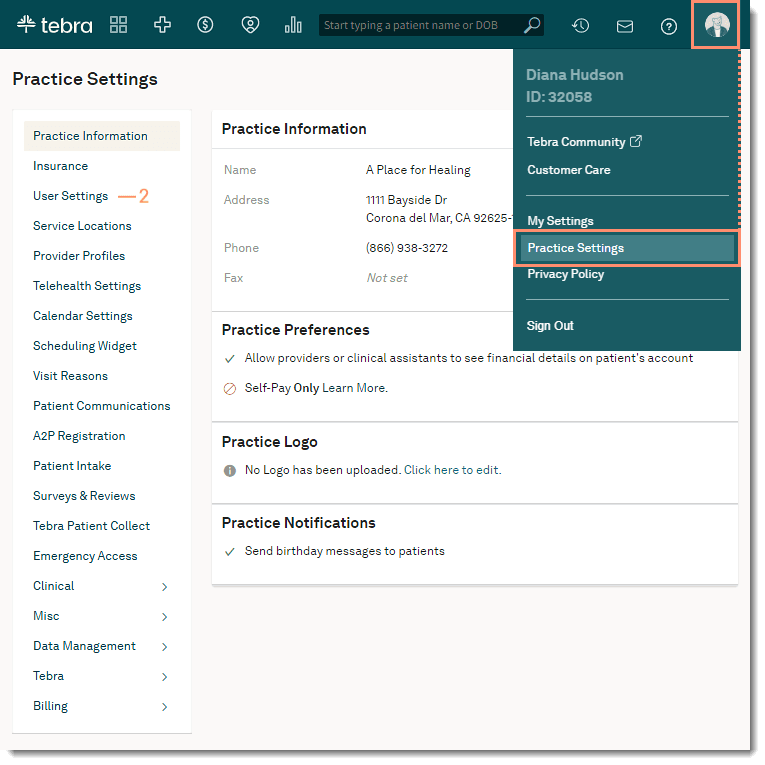 Open Practice Settings from the user menu, then select User Settings. Screenshot from Tebra Help Center.
3. Enter the Scope account details
- Select Non-Provider as the user type.
- Enter the account details from Scope:
- First Name: Scope Health
- Last Name: Support
- E-Mail: The email from your Scope setup page
- Password: The temporary password from that page
- Repeat Password: The same temporary password
Use the dedicated Scope email and temporary password, not your own Tebra login. If Tebra requires a phone number that Scope does not provide, contact Scope support.
4. Choose roles and practice access
- Under Roles, select System Admin, Clinical Assistant, and Office Staff.
- Under Practice Access, select the practices you want Scope to access.
- Click Create User.
You can grant access only to practices that your administrator account can access. Emergency access is optional in Tebra and is not part of the Scope setup instructions.
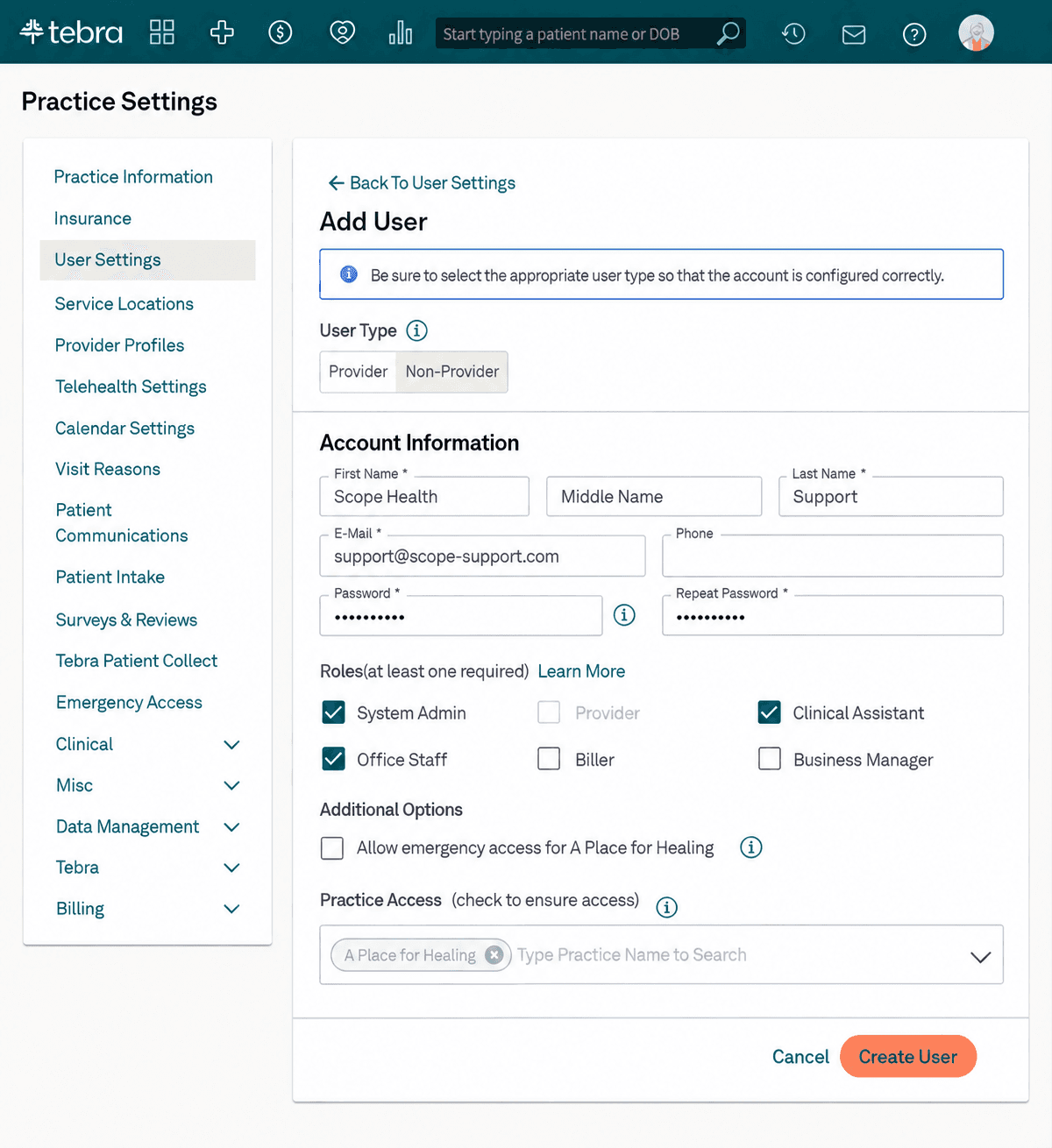 The Add User form with the three Scope roles selected: System Admin, Clinical Assistant, and Office Staff. Screenshot adapted from Tebra Help Center.
The screenshot shows the three required roles selected: System Admin, Clinical Assistant, and Office Staff. The email and practice are examples. Use the email and temporary password from your Scope setup page, and select your own practices.
5. Return to Scope
- Return to the Tebra setup page in Scope.
- Click I’ve added the user.
Tebra sends the invitation to the Scope email address. Scope receives the email, replaces the temporary password, and checks access. The setup page shows each step of the progress.
You can leave the setup page while setup continues. To resume, open your pending connection under Settings → Organization → EHR integrations.
Questions during setup
I cannot find User Settings or add a user.
Ask your Tebra System Administrator to complete the Tebra steps.
Which password do I use?
Use the temporary password from your Scope setup page. Do not send passwords in chat messages or email.
A practice is missing from Practice Access.
Ask a Tebra administrator with access to that practice to grant the Scope user access.
Setup does not advance.
Make sure that the new account uses the exact Scope email, all three required roles, and the intended practices. Read the setup status in Scope, or contact support@scopehealth.com.
Tebra reference
Screenshots on this page are from Tebra Help Center: Add New User or Provider Account. Tebra owns the screenshots. The account details and practices shown there are examples, not your Scope account settings.