Setting Your Default Template
Your default template is automatically selected when you start a new visit. Setting this to your most-used template saves time.
How to Set a Default Template
There are two ways to set your default template:
From the Templates Page
- Go to Templates in the sidebar
- In Your library, hover over the template and click the ⋯ menu
- Click Set as default
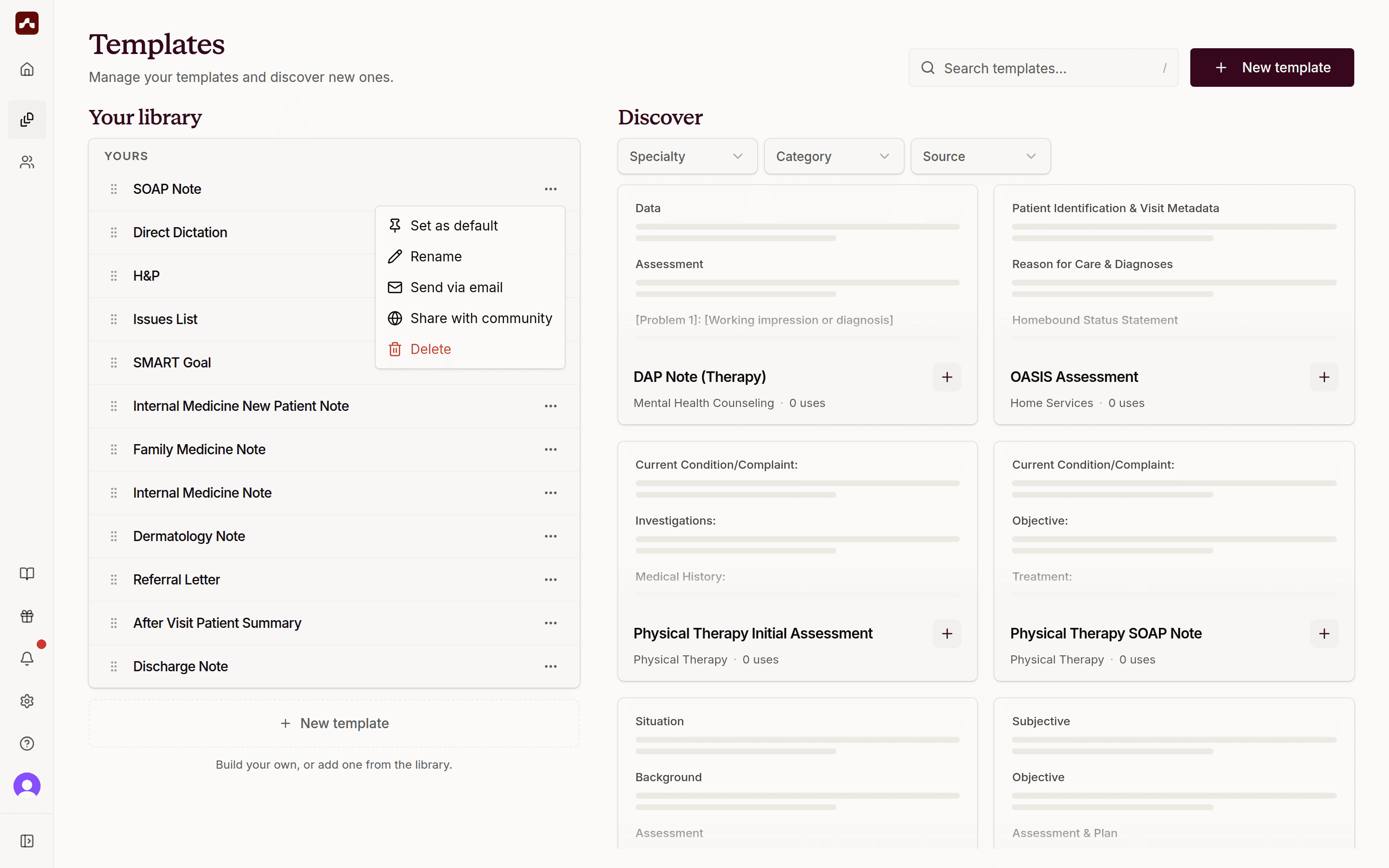 Open the template's ⋯ menu in Your library and choose Set as default
From the Template Editor
- Go to Templates in the sidebar
- Click on the template you want to make default to open it in the editor
- Click the Set as Default button in the top right corner
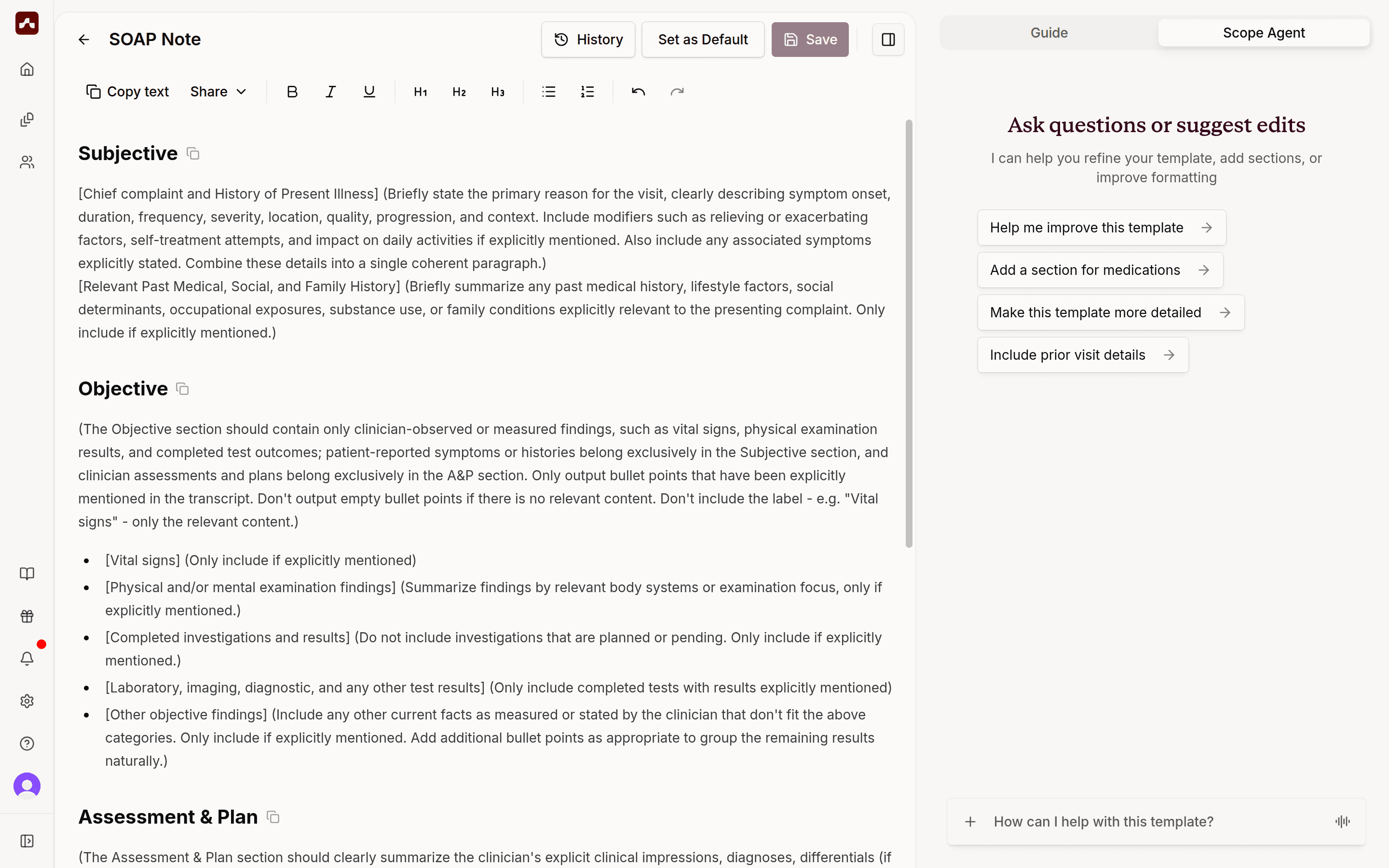 Click "Set as Default" in the template editor to make this your primary template
Changing Templates Per Visit
You can always select a different template for individual visits:
- On the home screen, use the template dropdown before starting your visit
- This doesn't change your default - it only applies to that specific visit
- The last template you used will be remembered for your next visit
Tips
- Set your most commonly used template as the default
- Create specialty-specific templates for different visit types
- You can change your default template anytime — use Remove as default in the same menu to clear it