Managing Your Profile
Your Scope Health profile contains information about you and your practice. Here's how to view and update your account details.
Accessing Your Profile
Your account details live in the Manage account screen, which you open from Settings:
- Click the Settings icon (gear) in the bottom left of the sidebar
- On the Personal tab, click Manage account at the bottom of the Account navigation
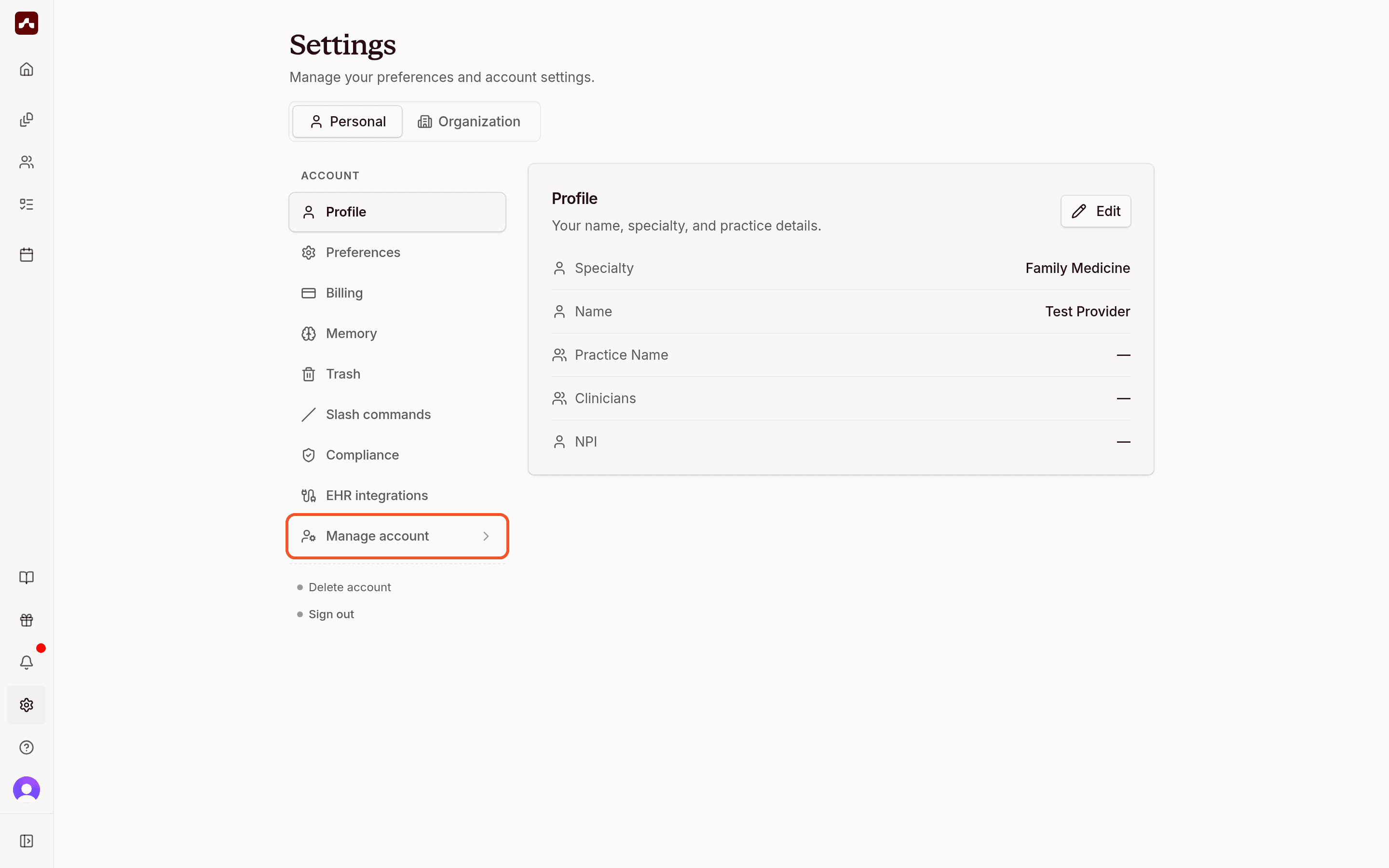 The Manage account entry at the bottom of the Account section in Settings
Profile Tab
The Profile tab (selected by default) lets you manage:
- Profile: Your name and profile photo - click "Update profile" to change
- Email addresses: Your primary email and any additional addresses
- Connected accounts: Link or unlink Google and other sign-in providers
Security Tab
Click Security in the left sidebar to access:
- Password: Set or update your account password
- Active devices: View all devices where you're signed in
The Account Menu
Clicking your profile picture at the bottom of the sidebar opens the account menu. It shows the name and email of the account you're signed in to, and gives you quick access to Settings and Sign out.
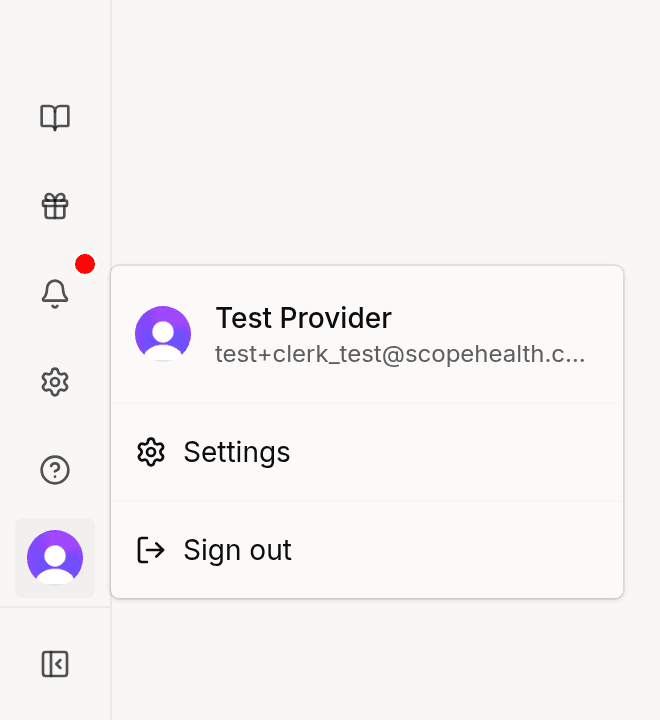 The account menu showing the signed-in account, Settings, and Sign out
Signing Out
To sign out of Scope, click your profile picture at the bottom of the sidebar and select Sign out. You'll also find a Sign out option at the bottom of the Settings navigation (below the Account section on the Personal tab). You can sign back in anytime with the same account to access all your visits and templates.
Deleting Your Account
Account deletion is not part of the Manage account screen. To permanently delete your account and all associated data, go to Settings and use Delete account. See Deleting Your Account for step-by-step instructions.
Looking to change how Scope looks — including dark mode — or adjust text size and language? See Customizing Appearance & Preferences.
If you have any additional questions, please contact support@scopehealth.com.